Guide >
Project previews and excerpts
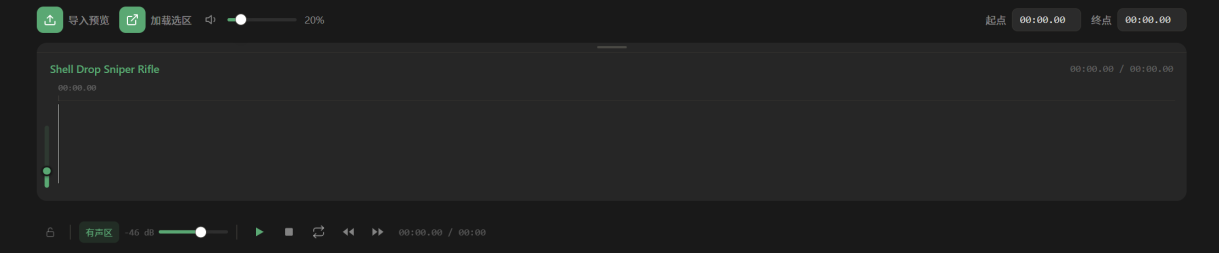
Export a preview for listening. Use Load Selection to return to the original editable project section.
Generate audio: Export Preview / 导入预览
- 01Select the project in Projects, open it in REAPER, and confirm Bridge is connected.
- 02Set a Time Selection around the sound design you want to preview.
- 03Use the preview export button in Projects. Wait for REAPER to render that range and save it as the app’s project preview.
- 04Audition the waveform and check the range, duration, and sound.
Reuse only the finished sound
- 01Choose a project with a preview and select a range in its waveform.
- 02Listen and check the boundaries; loop to inspect seams or tails if needed.
- 03Drag the range into REAPER and use it as new audio material.
Continue editing with Load Selection
- 01Select a time range in the project preview.
- 02Click Load Selection. Bridge loads the matching material into a new REAPER project tab.
- 03Check the tracks, media, and range, then continue editing.
Understand preview states
- No preview
- Generate one first; it is not a search failure.
- Outdated
- The project changed. Export again to match current content.
- Preview audio missing
- Check whether preview files moved or were deleted, then regenerate if needed.
- Missing media
- Repair the project’s media paths in REAPER before exporting.